Create Request (Admin)
As an Admin, you can raise an artwork request on behalf of a supplier — for example, when a supplier phones in a request or you're setting one up for them.
You reach this page by clicking + New Request on the All Requests tab.
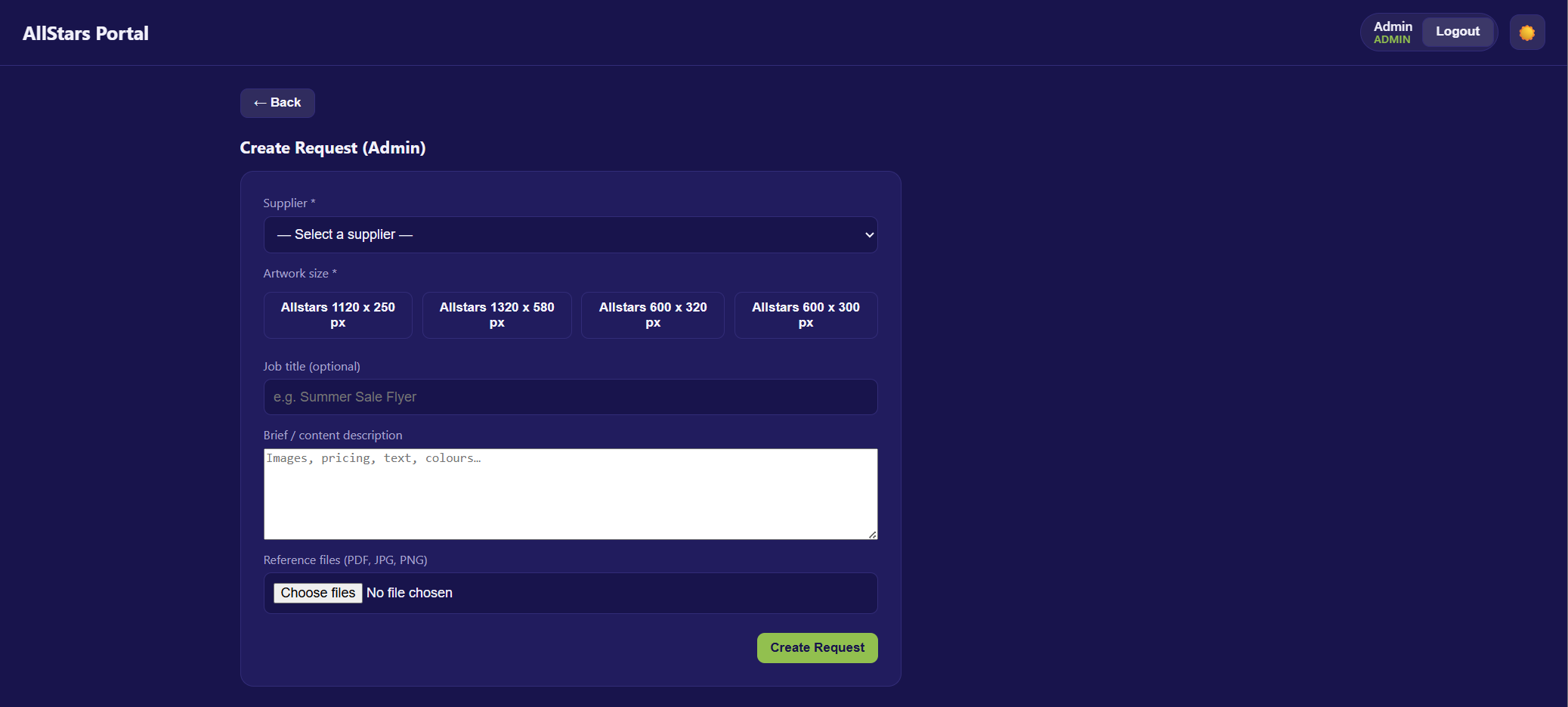
Step 1 — Choose the Supplier (required)
Select which supplier the request is for from the Supplier dropdown.
- The dropdown lists all users with the supplier role.
- Each entry shows the supplier's name (or email) and their company in brackets, if set — e.g. Jane Doe (Acme Pty Ltd).
Warning
A supplier is required. If you try to submit without choosing one, you'll see "Please choose a supplier".
Step 2 — Choose Artwork Size (required)
Pick one of the available artwork sizes by clicking its button. The selected size is highlighted.
| Available Sizes |
|---|
| Allstars 1120 x 250 px |
| Allstars 1320 x 580 px |
| Allstars 600 x 320 px |
| Allstars 600 x 300 px |
Warning
Size is also required. Without it you'll see "Please choose a size".
Step 3 — Job Title (optional)
Give the request a recognisable name, e.g. "Summer Sale Flyer". If left blank, it appears as (untitled) in the request list.
Step 4 — Brief / Content Description
Describe what the supplier wants on the flyer — images, pricing, text, colours, and any other details the designer needs.
Step 5 — Reference Files
Attach any supporting files.
- Accepted file types: PDF, JPG, PNG
- You can select multiple files at once.
- Selected files are listed by name below the file picker.
Step 6 — Create the Request
Click Create Request.
- While saving, the button shows Creating… and is disabled.
- On success, you're taken back to the Admin Dashboard, where the new request appears in the list with the status Submitted.
Validation & Errors
Any problem is shown in a red message at the top of the form:
| Message | Cause |
|---|---|
| Please choose a supplier | No supplier was selected. |
| Please choose a size | No artwork size was selected. |
| Something went wrong | The request failed to save — try again. |
Difference from the Supplier Form
The Admin create form works like the supplier's New Artwork Request, with one key addition:
- Supplier picker — admins must choose which supplier the request belongs to, since they're creating it on someone else's behalf.
Everything else — size, title, brief, and file upload — is the same.