Request Detail
The Request Detail page gives Admins a full view of a single request. Here you can review the supplier's brief and files, manually change the request's status, and follow the conversation between the supplier and designer.
You reach this page by clicking View on any row of the All Requests tab.
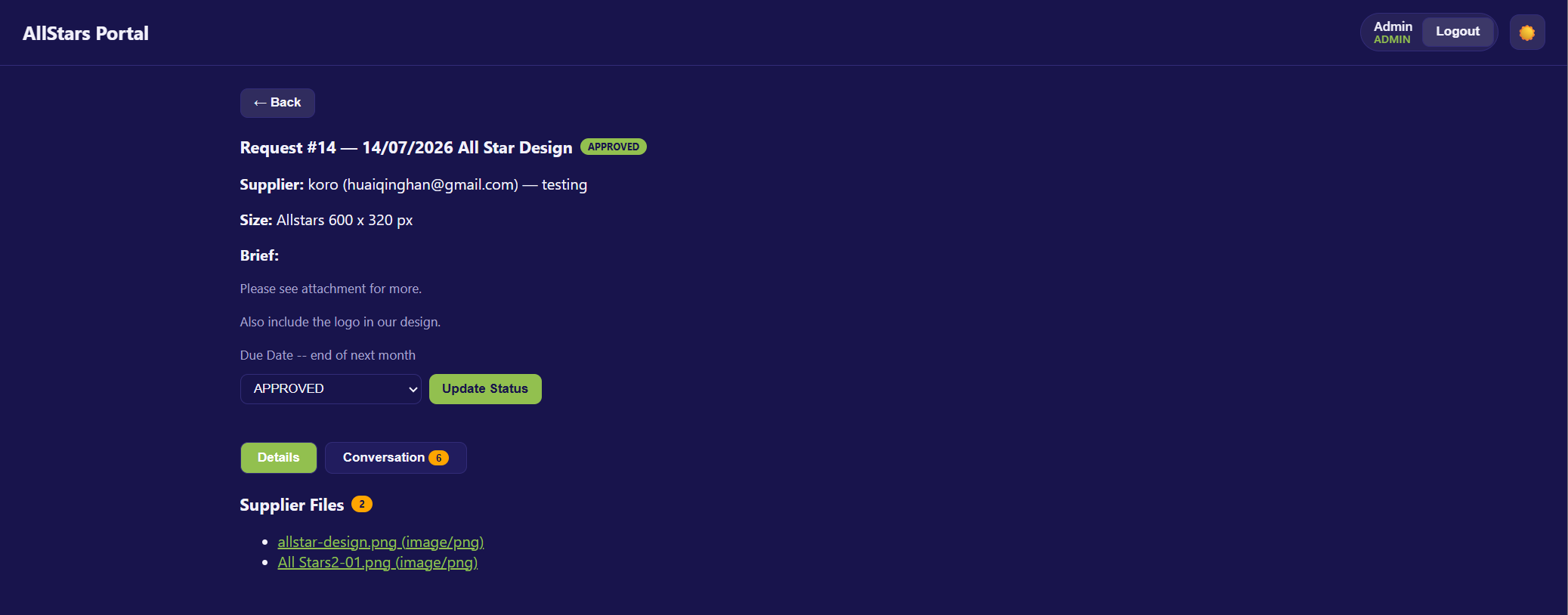
Overview
At the top you'll always see a summary of the request:
- Request ID and title (or (untitled)), with the current status badge.
- Supplier — name, email, and company (if set).
- Size — the selected artwork size.
- Brief — the description submitted with the request.
Click ← Back at any time to return to the Admin Dashboard.
Changing the Status
Admins can manually move a request to any stage using the status editor in the overview block.
- Select the desired status from the dropdown.
- Click Update Status.
Available statuses:
| Status | Meaning |
|---|---|
| Submitted | Request submitted; waiting to be picked up. |
| In Design | A designer is working on the artwork. |
| Awaiting Approval | Artwork is ready; waiting on the supplier's approval. |
| Revision Requested | The supplier requested changes; the artwork is being revised. |
| Approved | The supplier approved the artwork; the job is complete. |
Note
Updating the status here overrides the automatic workflow — useful for correcting a request or moving it along manually.
Tabs
The page has two tabs:
| Tab | What it shows |
|---|---|
| Details | The supplier's uploaded files, with a count badge. |
| Conversation | Messages on the request (with a count badge). |
Details Tab — Supplier Files
The Details tab lists the Supplier Files attached to the request, with a badge showing the file count.
- Each file is a link showing its original name and file type — click to open it in a new tab.
- If a file's link is unavailable, it's shown as "\<name> — link unavailable".
- If nothing was uploaded, you'll see "No files uploaded."
Conversation Tab
Switch to the Conversation tab to read and take part in the message thread, with a badge showing the number of messages.
- Read the full history between the supplier and designer.
- Use "Add a message" to post into the thread as an Admin.