All Requests
The All Requests tab is your master view of every design request in the portal — across all suppliers. From here you can filter by status, open any request, create new ones, and delete requests.
This is the default tab on the Admin Dashboard.
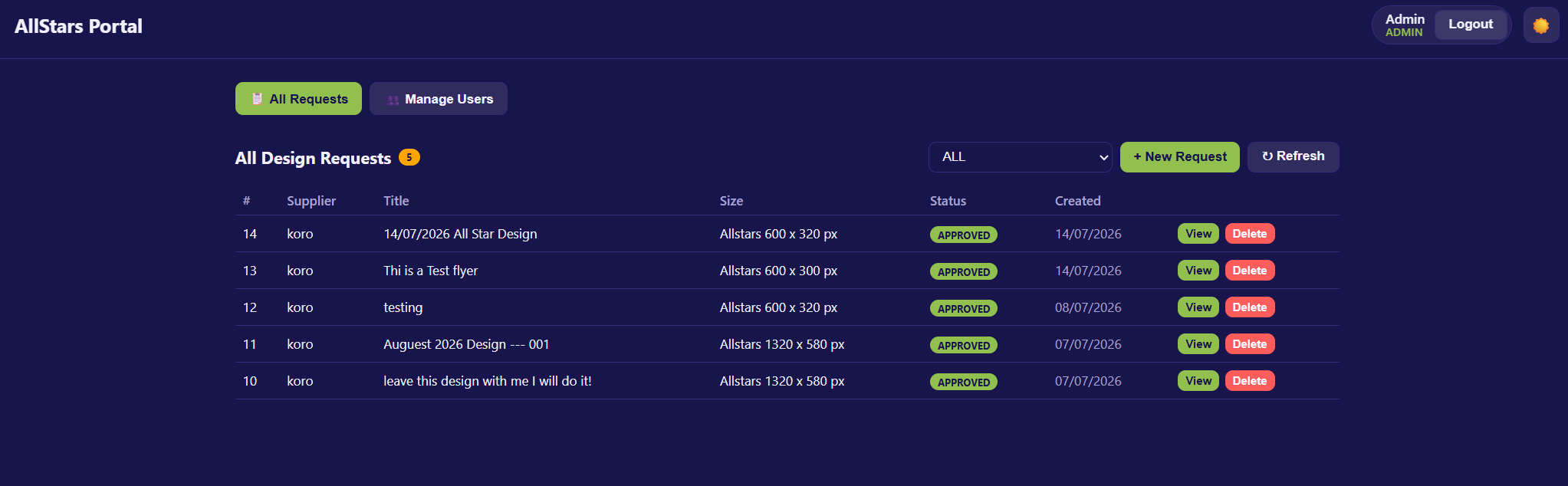
The Header
At the top of the list you'll find:
- All Design Requests with a count badge showing the total number of requests.
- A status filter dropdown.
- + New Request — create a request on behalf of a supplier.
- ↻ Refresh — reload the list to get the latest data.
Filtering by Status
Use the dropdown to show only requests at a particular stage. Options:
| Filter | Shows |
|---|---|
| ALL | Every request (default). |
| SUBMITTED | Submitted requests only. |
| IN DESIGN | In Design requests only. |
| AWAITING APPROVAL | Awaiting Approval requests only. |
| REVISION REQUESTED | Revision Requested requests only. |
| APPROVED | Approved requests only. |
Note
The count badge next to the heading always shows the total number of requests, regardless of the current filter.
The Request List
Requests are shown in a table with these columns:
| Column | Description |
|---|---|
| # | The request ID number. |
| Supplier | The supplier the request belongs to. |
| Title | The job title. Shows (untitled) if none was set. |
| Size | The selected artwork size. |
| Status | The current status badge. |
| Created | The date the request was created. |
| Actions | View and Delete buttons. |
Note
If no requests match the current filter, you'll see "No requests found."
Actions
View
Click View on any row to open the full request, where you can change its status and review files and the conversation.
See Request Detail for details.
Delete
Click Delete to permanently remove a request.
- A confirmation appears: "Delete request #\<id>? This removes its files & comments."
- Confirm to delete.
Warning
Deleting a request permanently removes its files and comments as well. This cannot be undone.
Creating a New Request
Click + New Request to raise a request on behalf of a supplier.
See Create Request (Admin) for the full guide.