New Order (Organisation)
The New Order page lets Org Admins raise an artwork request on behalf of any member in their organisation. It works like the standard New Artwork Request form, with one addition: you choose who the order is for.
You reach this page by clicking + New Order on the Organisation Orders page.
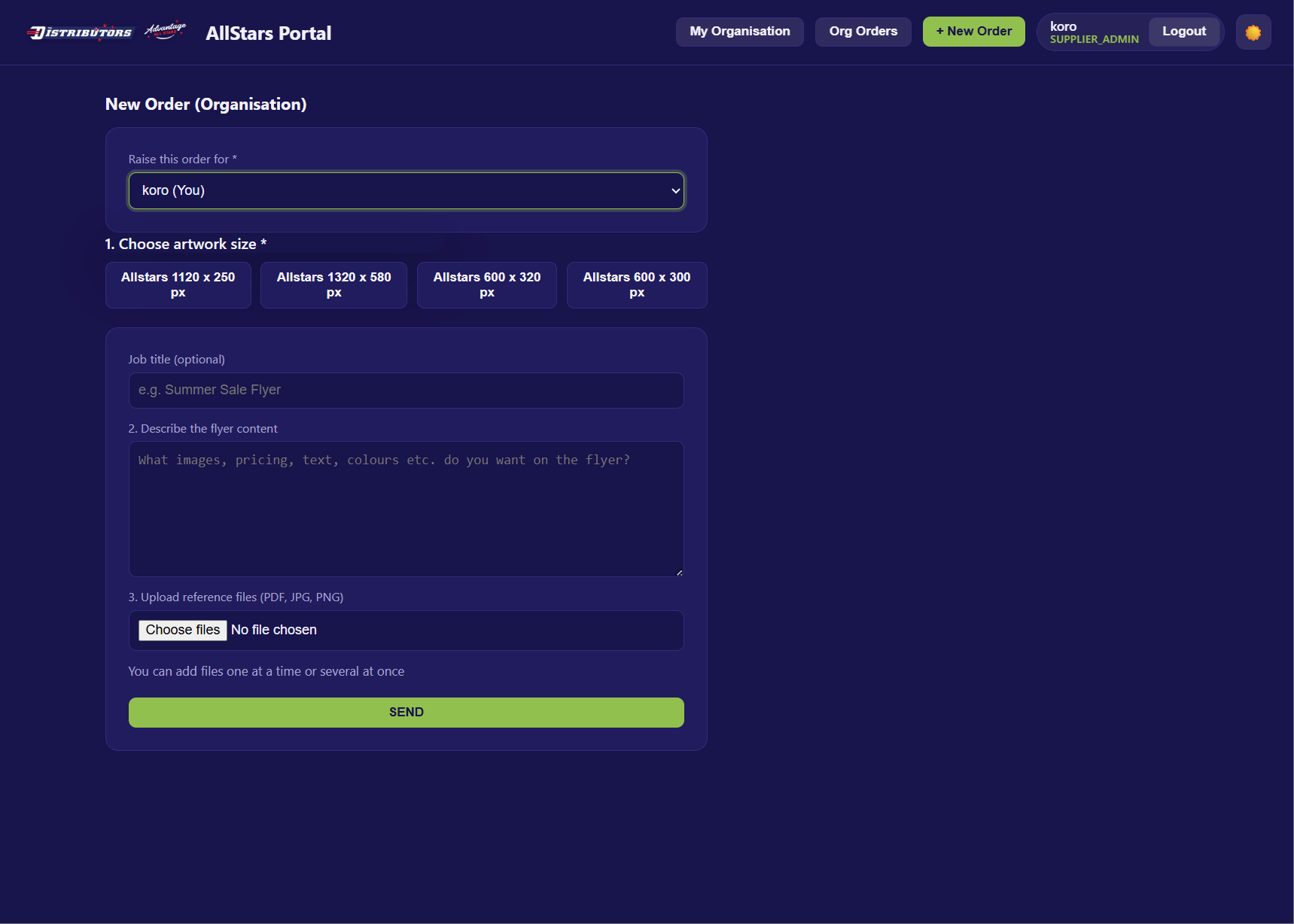
Step 0 — Raise This Order For (required)
Select which organisation member this order belongs to from the dropdown.
- The dropdown lists all members in your organisation.
- Your own account is marked (You) and is selected by default.
- The selected member will see this order in their My Requests view and will be notified when artwork is ready.
Warning
A member must be selected. If none is chosen you'll see "Please choose who this order is for".
Step 1 — Choose Artwork Size (required)
Pick one of the available artwork sizes by clicking its button. The selected size is highlighted.
| Available Sizes |
|---|
| Allstars 1120 x 250 px |
| Allstars 1320 x 580 px |
| Allstars 600 x 320 px |
| Allstars 600 x 300 px |
Warning
Size is required. Without it you'll see "Please choose a size".
Step 2 — Job Title (optional)
Give the order a recognisable name, e.g. "Summer Sale Flyer". If left blank, it appears as (untitled) in the orders list.
Step 3 — Describe the Flyer Content
Describe what you want on the flyer — images, pricing, text, colours, and any other details the designer needs.
Step 4 — Upload Reference Files
Attach any supporting files.
- Accepted file types: PDF, JPG, PNG
- You can add files one at a time or several at once.
- Each file shows its name and size (KB); click ✕ Remove to drop it.
- Duplicate files (same name and size) are automatically skipped.
Step 5 — Send
Click SEND to submit the order.
- While sending, the button shows Sending… and is disabled.
-
On success you'll see:
✅ Order sent! Designer will design the artwork and notify the assigned member when it's ready to approve.
-
Click Back to Org Orders to return to the Organisation Orders page.
Difference from the Standard New Request Form
| Standard Supplier Form | Org New Order Form | |
|---|---|---|
| Who raises it | The logged-in supplier (themselves) | Any org member (chosen via dropdown) |
| Artwork is assigned to | The logged-in user | The selected org member |
| Notifications go to | The logged-in user | The selected org member |
Everything else — size, title, brief, and file upload — is identical.