Job Detail
The Job Detail page is where you do the actual design work for a single job. From here you can start the job, review the brief and reference files, inspect the supplier's markups, upload artwork versions, and message the supplier.
You reach this page by clicking Open on any row of the Job Queue.
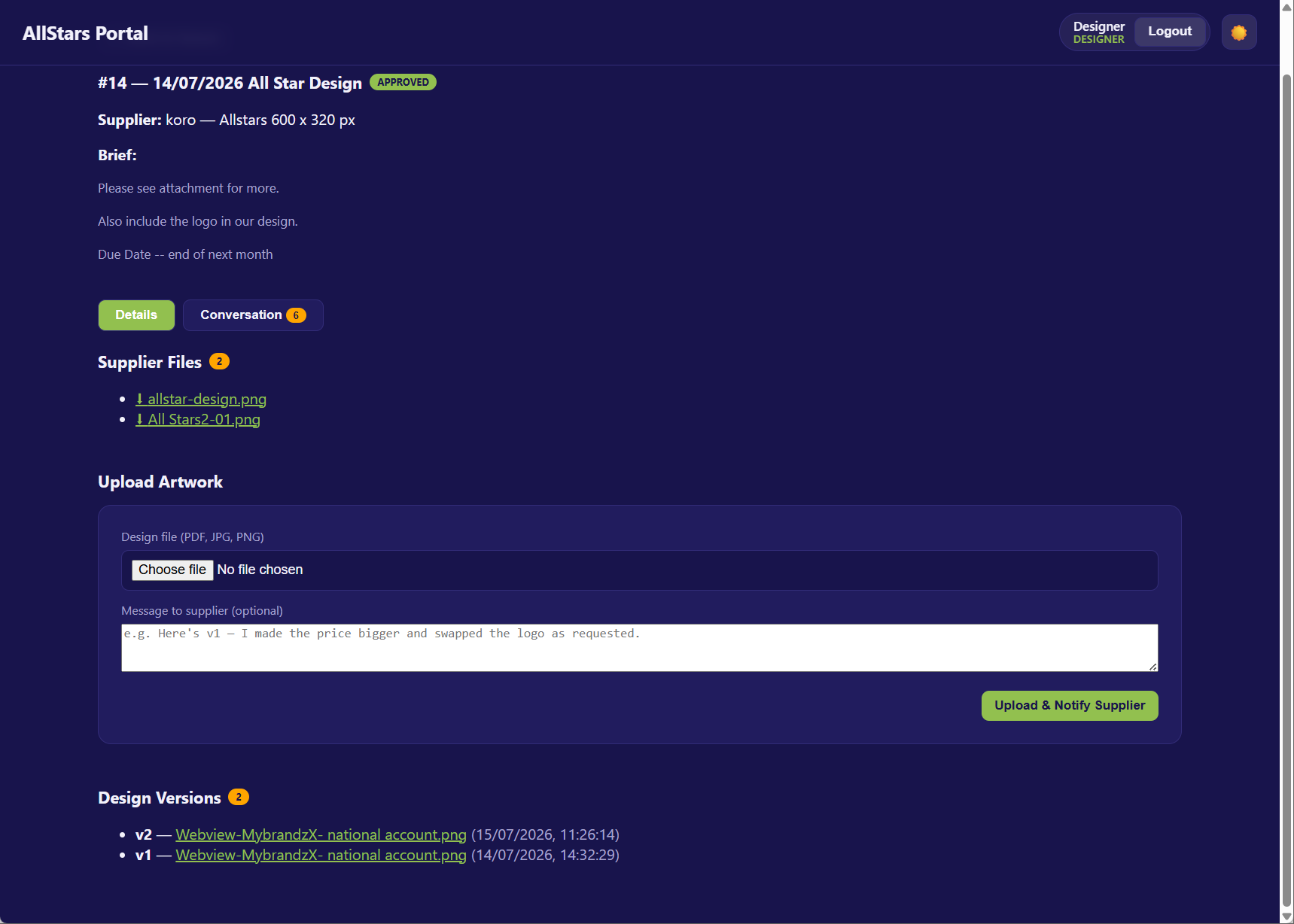
The Brief
At the top you'll always see a summary of the job:
- Job ID and title (or (untitled)), with the current status badge.
- Supplier and the requested artwork size.
- Brief — the supplier's full description of what they want.
Click ← Back to Queue at any time to return to the Job Queue.
Starting a Job
A new job arrives as Submitted. You must claim it before you can upload artwork.
- Click Start Working (top-right of the brief block).
- The status moves to In Design.
- The supplier is notified by email that work has begun.
Note
Until you click Start Working, the Upload Artwork section is locked with the message: "Click 'Start Working' above to begin this job."
Tabs
| Tab | What it shows |
|---|---|
| Details | Supplier files, markups, artwork upload, and design versions. |
| Conversation | The message thread with the supplier (with a count badge). |
Details Tab
Supplier Files
The Supplier Files block (with a count badge) lists the reference files the supplier attached.
- Each file is a ⬇ download link showing its original name.
- If a link is unavailable, it shows "\<name> — link unavailable".
- If none were attached, you'll see "No reference files."
Supplier Markups
When the supplier has requested changes, a Supplier Markups 🖊️ block appears (highlighted, with a Changes Requested badge and a count of the markups).
- Requested changes note — the supplier's written description of what they want changed is shown at the top.
- Markup gallery — all the supplier's markups are shown as a thumbnail grid, each numbered (#1, #2, …).
- Click any thumbnail to open it full resolution in a zoom viewer.
Tip
The markups are drawn directly on your latest design version, so you can see exactly where and what the supplier wants changed.
The Zoom Viewer
Clicking a markup opens a full-screen overlay:
- The full-resolution markup loads ("Loading full resolution…" while it fetches).
- Click the image to open it in a new browser tab, or ✕ Close (or click outside) to dismiss.
- If it can't load, you'll see "Could not load the full-resolution markup."
Uploading Artwork
Once the job is started, use the Upload Artwork block to deliver a design.
- Choose a Design file — accepted types: PDF, JPG, PNG.
- (Optional) Add a Message to supplier, e.g. "Here's v1 — I made the price bigger and swapped the logo as requested."
- Click Upload & Notify Supplier.
On success:
- The artwork is saved as a new version.
- The supplier is notified to approve, and the status becomes Awaiting Approval.
- You'll see the confirmation "✅ Design uploaded — supplier notified to approve."
Warning
You must choose a file first — otherwise you'll be prompted "Choose a design file first".
Design Versions
The Design Versions block (with a count badge) lists every version you've uploaded, newest first.
- Each entry shows v\<number>, a link to view/download the file, and the date/time it was uploaded.
- If you haven't uploaded anything yet, you'll see "No versions uploaded yet."
Conversation Tab
Switch to the Conversation tab (with a message-count badge) to talk with the supplier.
- Read the full message history.
- Use "Message the supplier" to post a reply or ask a question.
Handling a Change Request
When a supplier requests revisions, the job returns as Revision Requested. To handle it:
- Open the job from the Job Queue (these are sorted near the top).
- Read the Requested changes note in the Supplier Markups block.
- Click through the markups to see exactly what to change.
- Make your edits, then upload a new version via Upload & Notify Supplier.
- The supplier is notified to review again.