Using the Markup Tool
The Markup Tool lets you draw annotations directly on the artwork so the designer can see exactly what you'd like changed — arrows pointing at elements, boxes around areas, text notes, and more.
You open it from the Request Changes form on the Viewing a Request page by clicking ✏️ Add Markup.
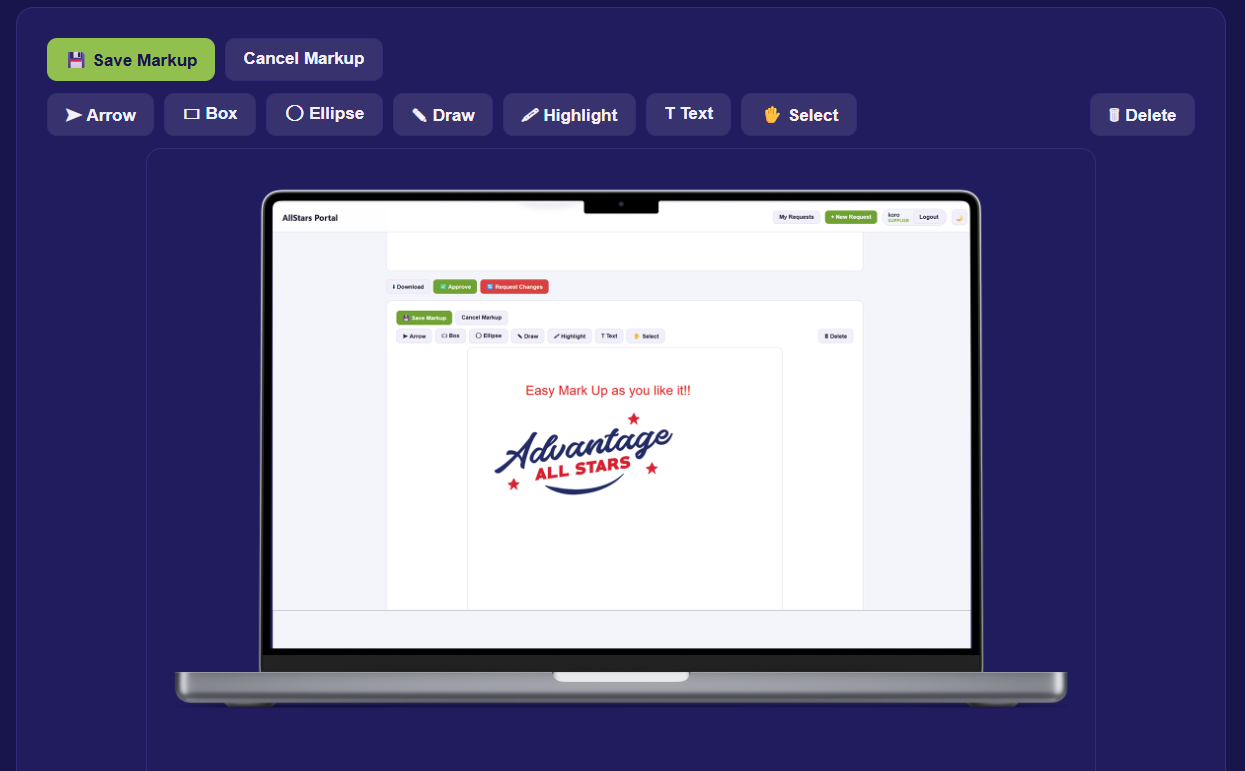
The Drawing Tools
Select a tool from the toolbar, then draw on the artwork.
| Tool | Icon | What it does |
|---|---|---|
| Arrow | ➤ | Point to a specific element on the design. |
| Box | ▭ | Draw a rectangle around an area. |
| Ellipse | ◯ | Draw a circle/oval around an area. |
| Draw | ✎ | Freehand drawing — sketch anything by hand. |
| Highlight | 🖍 | Highlight an area with a translucent colour. |
| Text | T | Add a text note directly on the design. |
Sticky drawing mode
After you draw one shape, the same tool stays armed so you can keep drawing more of the same type. Just keep clicking/dragging on the image to add more.
Toolbar Controls
Alongside the tools, the toolbar has two helper buttons:
| Button | What it does |
|---|---|
| ✋ Select | Stop drawing and switch to select mode, so you can move/adjust markers. |
| 🗑 Delete | Delete the currently selected annotation. |
Note
Clicking the active tool again also turns it off and returns you to select mode.
Choosing Colour, Line Width & Text Size
Once you've picked a tool, extra options appear.
Colour
Available for all tools. Pick from:
| Colour | Swatch | Hex |
|---|---|---|
| Red | #e02424 |
|
| Black | #111111 |
|
| Green | #16a34a |
|
| Blue | #2563eb |
|
| White | #ffffff |
Demo — the same arrow in each colour:
Line Width
Available for Arrow, Box, Ellipse, and Draw:
| Option | Size | Demo |
|---|---|---|
| Small | 2 px | |
| Medium | 4 px | |
| Big | 7 px |
Demo — a box drawn at each width:
Small (2px) · Medium (4px) · Big (7px)
Text Size
Available for the Text tool:
| Option | Size | Demo |
|---|---|---|
| Small | 28 px | Sample |
| Medium | 52 px | Sample |
| Big | 80 px | Sample |
Demo — "SALE" at each text size:
Small (28px) · Medium (52px) · Big (80px) — shown scaled down for preview
Note
The Highlight tool uses colour only — it has no line-width or text-size option.
Editing & Deleting Annotations
- Click ✋ Select to enter select mode, then click a marker to select it.
- Change its colour, line width, or text size — updates apply to the selected marker live.
- Remove a marker with the 🗑 Delete button, or by pressing the Delete / Backspace key on your keyboard.
Saving Your Markup
- When you're happy with your annotations, click 💾 Save Markup.
- The markup is saved as a thumbnail in the change-request form.
- Click a thumbnail to preview it full-size, or × to remove it.
Tip
You can save up to 5 markups per change request. All of them are sent to the designer along with your written note when you click Send Change Request.
Tips for Effective Markups
- Use arrows to point at the exact element you're referring to.
- Use boxes or ellipses to circle areas that need attention.
- Add text notes for short instructions right where they apply.
- Pick a contrasting colour (e.g. red on a light design) so your marks are easy to see.
- Combine markups with a clear written note for the best results.