Admin Guide
As an Admin, you have full oversight of the MyBrandz All-Star Portal. You can manage every design request across all suppliers, create requests on a supplier's behalf, control the status of each job, and manage all user accounts.
The Admin Dashboard
After logging in, you land on the Admin Dashboard, which has two main tabs:
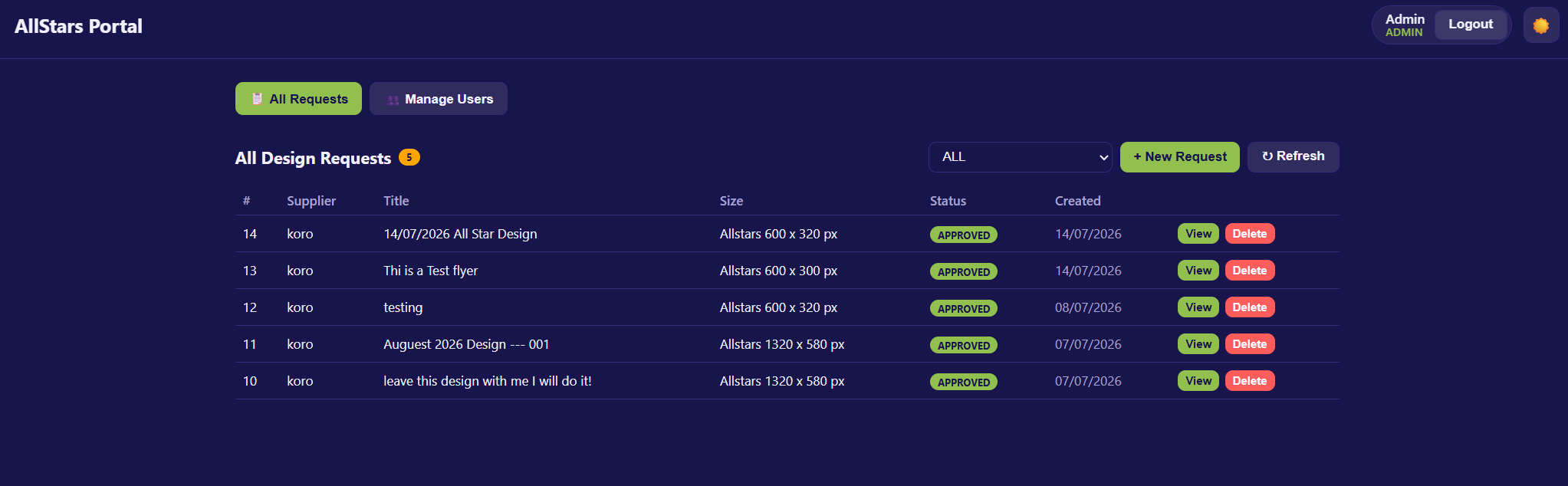
| Tab | What it does |
|---|---|
| 📋 All Requests | View, filter, create, open, and delete every design request in the portal. |
| 👥 Manage Users | Create and manage Supplier, Designer, and Admin accounts. |
Click a tab to switch between the two areas.
What You Can Do
- Oversee all requests — see every request from every supplier in one list, filtered by status.
- Create requests for suppliers — raise a request on behalf of any supplier.
- Drive the workflow — manually set a request's status at any stage.
- Review supplier files & conversations — inspect uploads and message threads.
- Delete requests — remove a request along with its files and comments.
- Manage users — create accounts, reset passwords, change emails, and delete users across all three roles.
Request Statuses
Admins can see — and manually set — every status in the workflow:
| Status | Meaning |
|---|---|
| Submitted | Request submitted by (or for) a supplier; waiting to be picked up. |
| In Design | A designer is working on the artwork. |
| Awaiting Approval | Artwork is ready; waiting on the supplier's approval. |
| Revision Requested | The supplier asked for changes; the artwork is being revised. |
| Approved | The supplier approved the artwork; the job is complete. |
Pages in This Guide
| Page | What it covers |
|---|---|
| All Requests | The full request list — filtering, viewing, and deleting requests. |
| Create Request (Admin) | Raising a new request on behalf of a supplier. |
| Request Detail | Viewing a request, changing its status, files & conversation. |
| Manage Users | Creating and managing all user accounts. |