Viewing a Request
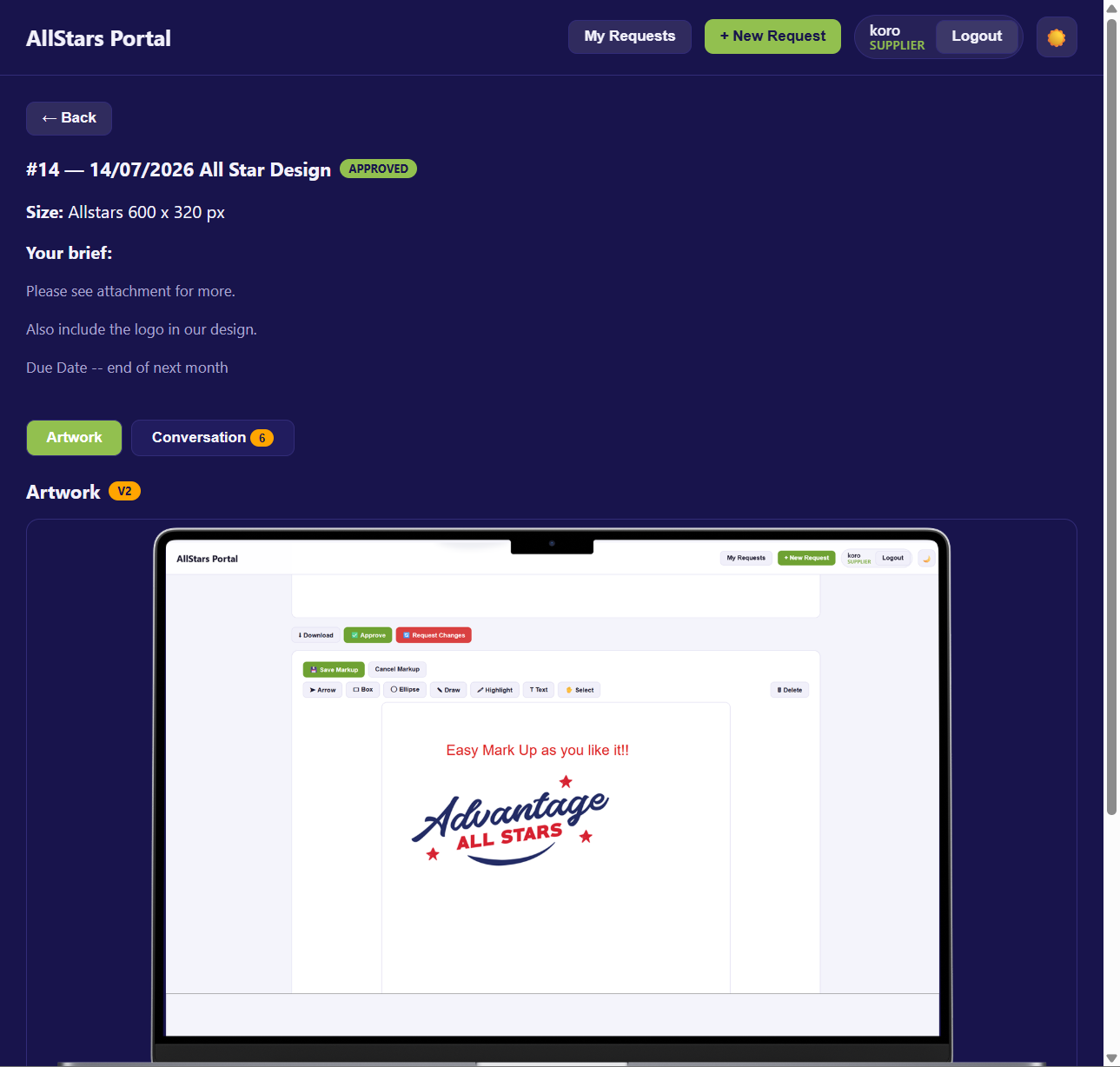
The Request View page shows everything about a single artwork request. From here you can review the designer's artwork, approve it, request changes (with drawn markups), browse previous versions, and message the designer.
You reach this page by clicking View on any row of your My Requests page.
Overview
At the top of the page you'll always see a summary of your request:
- Request ID and title (or (untitled)), with the current status badge.
- Size — the artwork size you selected.
- Your brief — the description you submitted.
Click ← Back at any time to return to your request list.
Tabs
The page has two tabs:
| Tab | What it shows |
|---|---|
| Artwork | The latest design, actions, and previous versions. |
| Conversation | Messages between you and the designer (with a count badge). |
Reviewing the Artwork
Under the Artwork tab you'll see the latest design version, labelled with a version badge (e.g. v2).
- If the artwork is an image, it's displayed directly on the page.
- If it's another file type (e.g. PDF), you'll see an Open artwork link instead.
- If no artwork has been uploaded yet, you'll see: "No artwork uploaded yet. You'll be emailed when it's ready."
Note
You'll be notified by email when the designer uploads artwork and it's ready for your approval.
Taking Action
When a request is Awaiting Approval, three actions become available:
| Action | What it does |
|---|---|
| ⬇ Download | Download the current artwork file. |
| ✅ Approve | Accept the artwork and mark the job complete. |
| 🔄 Request Changes | Open the change-request form to ask for revisions. |
Approving Artwork
- Click ✅ Approve.
- Confirm the prompt: "Approve this artwork? This marks the job as complete."
- The request status changes to Approved.
Once approved, a ⬇ Download Final Artwork button is available so you can download the finished design at any time.
Requesting Changes
If the artwork needs adjustments, click 🔄 Request Changes to open the change-request form.
- (Optional) Add markups — draw directly on the design to point out exactly what you'd like changed (see below).
- In "What changes would you like?", describe the revisions, e.g. "Make the price bigger, use a brighter background…"
- Click Send Change Request.
The request status changes to Revision Requested, and the designer is notified to revise the artwork.
Note
A change note is required — if you leave it blank you'll be prompted "Please describe the changes".
Adding Markups (Drawing on the Design)
Markups let you draw annotations right on top of the artwork — arrows, boxes, highlights, freehand sketches, and text notes — so the designer can see exactly what you mean.
- In the change-request form, click ✏️ Add Markup.
- Draw on the design using the markup tools.
- Click 💾 Save Markup to keep it, or Cancel Markup to discard.
- Saved markups appear as thumbnails — click a thumbnail to view it full-size, or click × to delete it.
Tip
You can attach up to 5 markups per change request. All saved markups are sent along with your written note when you click Send Change Request.
📖 For the full list of drawing tools, colours, sizes, and editing tips, see the Using the Markup Tool guide.
Previous Versions
If the designer has uploaded more than one version, a Previous Versions section lists them all, newest first. Each entry links to that version's file and shows the date it was created.
Conversation
Switch to the Conversation tab to message the designer directly. The tab shows a badge with the number of messages.
- Read the full message history with the designer.
- Use "Message the designer" to post a reply or ask a question.
This is the best place to clarify details without formally requesting changes.
Status Reference
| Status | Meaning |
|---|---|
| Submitted | Request submitted; waiting for the designer to pick it up. |
| In Design | The designer is working on your artwork. |
| Awaiting Approval | Artwork is ready — your review and approval is needed. |
| Revision Requested | You've requested changes; the designer is revising the artwork. |
| Approved | You approved the artwork; the job is complete. |