My Requests
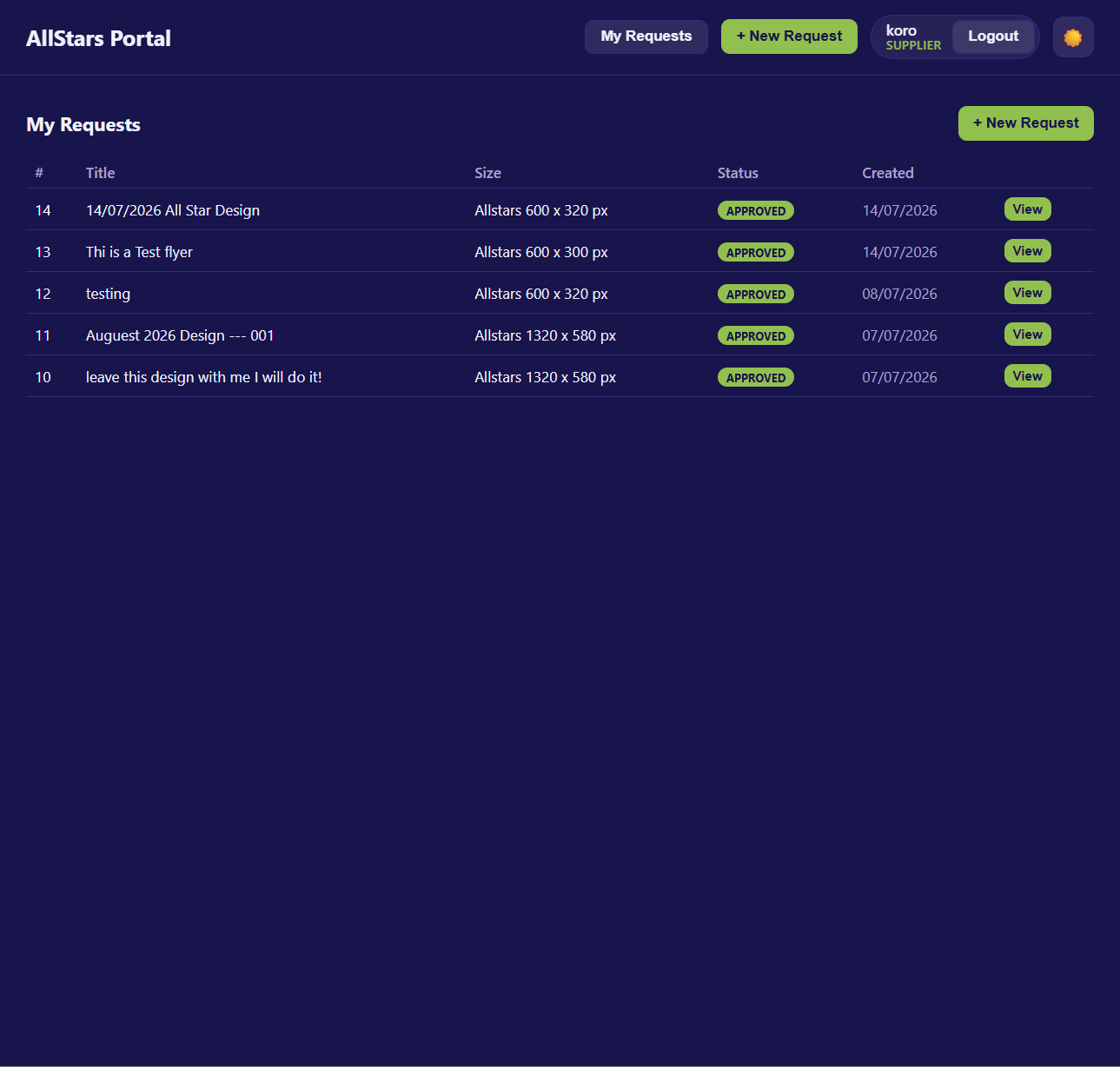
The My Requests page is your dashboard as a Supplier (Guest). It lists all the artwork requests you've raised and lets you create new ones or open an existing request to track its progress.
Opening My Requests
After logging in, you'll land on your My Requests page.
Creating a New Request
Click the + New Request button in the top-right corner to start a new artwork request.
See New Artwork Request for the full step-by-step guide.
Understanding the Request List
Your requests are shown in a table with the following columns:
| Column | Description |
|---|---|
| # | The request ID number. |
| Title | The job title you gave the request. Shows (untitled) if blank. |
| Size | The artwork size you selected (e.g. Allstars 1120 x 250 px). |
| Status | The current stage of the request (see statuses below). |
| Created | The date the request was raised. |
| View | Opens the full request to view artwork and take action. |
Note
If you haven't raised any requests yet, you'll see the message "No requests yet. Create your first one!" — just click + New Request to begin.
Request Statuses
The Status column shows where each request is in the workflow:
| Status | Meaning |
|---|---|
| Submitted | Request submitted; waiting for the designer to pick it up. |
| In Design | The designer is working on your artwork. |
| Awaiting Approval | Artwork is ready — your review and approval is needed. |
| Revision Requested | You've requested changes; the designer is revising the artwork. |
| Approved | You approved the artwork; the job is complete. |
Viewing a Request
Click the View button on any row to open that request. From there you can:
- See the latest artwork
- Approve the design
- Request changes (with markups)
- Message the designer
See Viewing a Request for details.