Job Queue
The Job Queue is your home base as a Designer. It lists every design request, automatically prioritising the jobs that need your attention first.
After logging in, you land on your Job Queue.
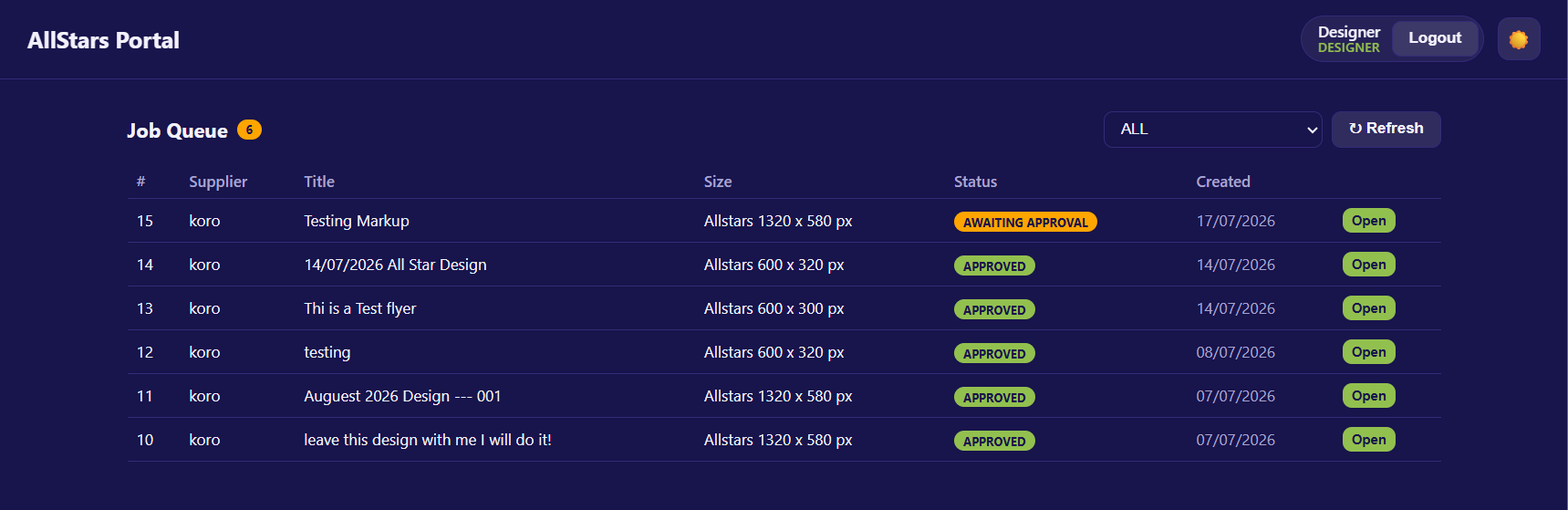
The Header
- Job Queue with a count badge showing the total number of jobs.
- A status filter dropdown.
- ↻ Refresh — reload the queue for the latest jobs.
Priority Sorting
Jobs are automatically sorted so the ones needing action appear at the top:
| Order | Status | Why it's prioritised |
|---|---|---|
| 1 | Submitted | New — needs you to start it. |
| 2 | Revision Requested | Supplier wants changes — act now. |
| 3 | In Design | In progress by you. |
| 4 | Awaiting Approval | Waiting on the supplier. |
| 5 | Approved | Done — lowest priority. |
Tip
This ordering means Submitted and Revision Requested jobs — the ones that need you — always float to the top of the queue.
Filtering by Status
Use the dropdown to show only jobs at a particular stage — ALL (default), Submitted, In Design, Awaiting Approval, Revision Requested, or Approved.
Note
The count badge always shows the total number of jobs, regardless of the filter. If nothing matches, you'll see "No jobs in the queue."
The Job List
| Column | Description |
|---|---|
| # | The job/request ID. |
| Supplier | The supplier who raised the request. |
| Title | The job title. Shows (untitled) if none was set. |
| Size | The requested artwork size. |
| Status | The current status badge. |
| Created | The date the request was created. |
| Open | Opens the full job. |
Opening a Job
Click Open on any row to view the full job — the brief, reference files, supplier markups, artwork upload, and conversation.
See Job Detail for details.