New Artwork Request
The New Artwork Request page is where you brief the designer team on the artwork you need. Fill in the size, describe what you want, attach any reference files, and send it off.
You reach this page by clicking + New Request on your My Requests page.
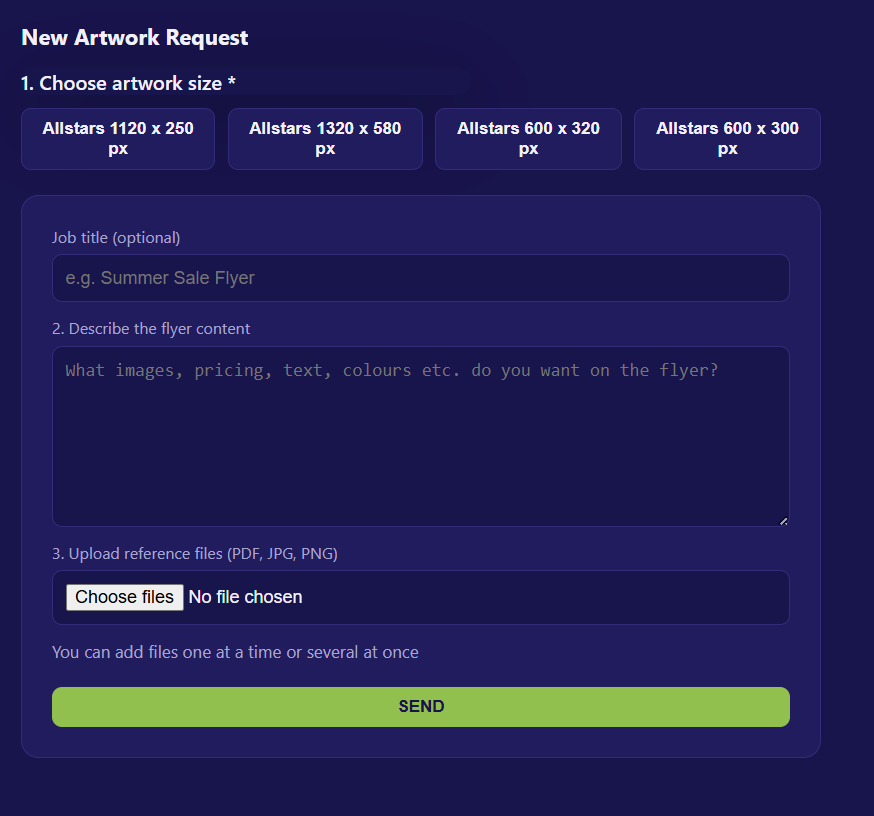
Step 1 — Choose Artwork Size (required)
Pick one of the available artwork sizes by clicking its button. The selected size is highlighted.
| Available Sizes |
|---|
| Allstars 1120 x 250 px |
| Allstars 1320 x 580 px |
| Allstars 600 x 320 px |
| Allstars 600 x 300 px |
Warning
Size is required. If you try to send without choosing one, you'll see the prompt "Please choose a size".
Step 2 — Job Title (optional)
Give your request a short, recognisable name, e.g. "Summer Sale Flyer".
Note
The title is optional. If you leave it blank, the request will appear as (untitled) in your request list.
Step 3 — Describe the Flyer Content
In the text box, describe exactly what you'd like on the flyer, for example:
- Images you want included
- Pricing and any special offers
- Text, headlines, or slogans
- Preferred colours or branding
The more detail you provide, the closer the first draft will be to what you want.
Step 4 — Upload Reference Files
Attach any supporting files to help the designer.
- Accepted file types: PDF, JPG, PNG
- You can add files one at a time or several at once.
- Each attached file shows its name and size; click ✕ Remove to drop a file before sending.
Tip
Duplicate files (same name and size) are automatically skipped, so you won't accidentally attach the same file twice.
Step 5 — Send
Click SEND to submit your request.
- While sending, the button shows Sending… and is disabled to prevent duplicate submissions.
-
On success, you'll see the confirmation:
✅ Request sent! Designer will design your artwork and notify you when it's ready to approve.
-
Click Back to My Requests to return to your request list, where the new request will appear with the status Submitted.
Troubleshooting
- "Please choose a size" — you must select an artwork size before sending.
- "Something went wrong" — the request failed to send. Check your internet connection and try again; if it persists, contact your Admin.