My Organisation
The My Organisation page is available to Org Admins — suppliers who
manage a team within their organisation. From here you can add team members,
edit their credentials, and navigate to your organisation's orders.
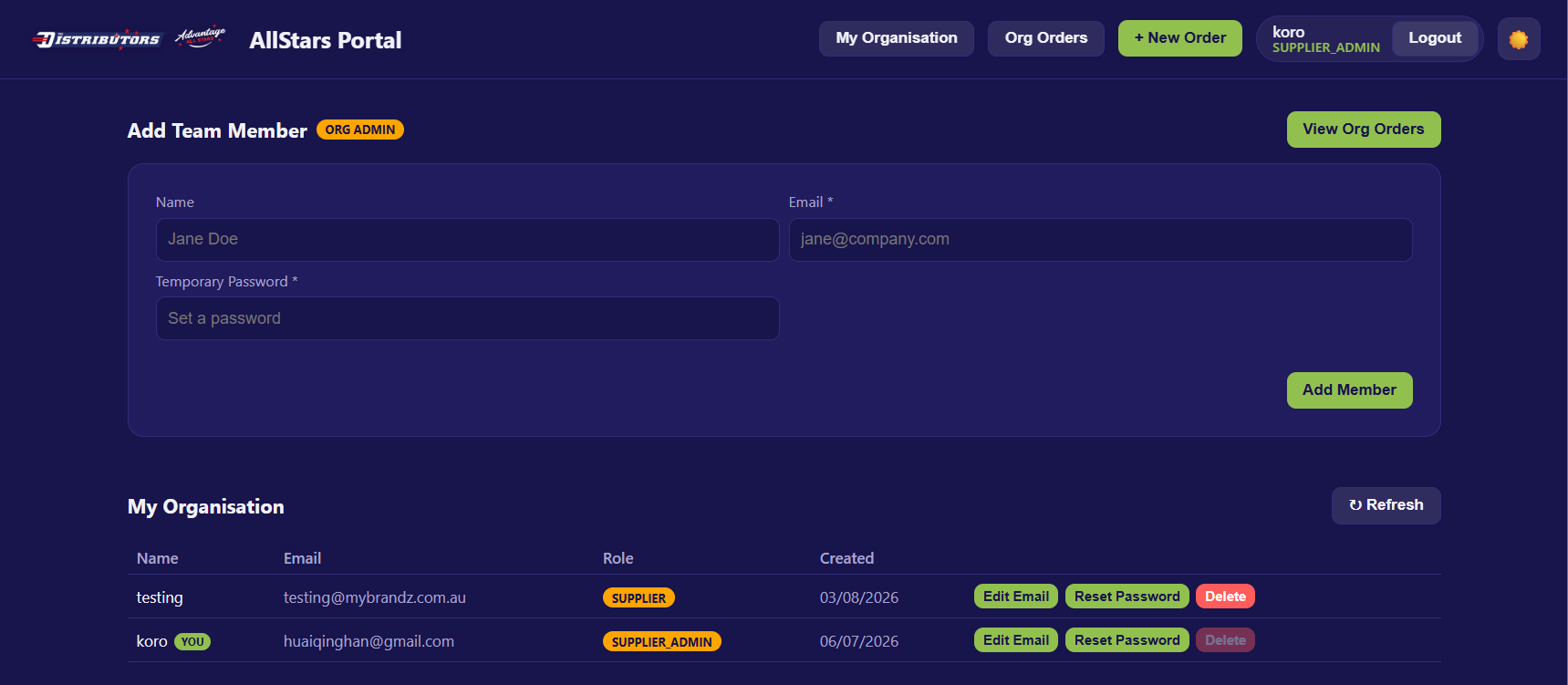
Add Team Member
Use the Add Team Member form to create a new supplier account within your organisation.
| Field | Required | Description |
|---|---|---|
| Name | Optional | The member's full name, e.g. Jane Doe. |
| ✅ | The login email, e.g. jane@company.com. | |
| Temporary Password | ✅ | An initial password you set for them. |
Click Add Member.
- While saving, the button shows Adding….
- On success, a green message confirms: "✅ User "jane@company.com" added to your organisation", and the form resets.
Warning
Email and password are required. If either is missing you'll see "Email and password are required".
Note
All members added here are created with the supplier role — the backend enforces this regardless of what is entered.
Viewing Org Orders
Click View Org Orders (top-right) to go to the Organisation Orders page, where you can see and manage all orders raised within your organisation.
My Organisation — Member List
All members of your organisation are listed in a table. Use ↻ Refresh to reload it.
| Column | Description |
|---|---|
| Name | The member's name (or —). Your own account is tagged You. |
| The member's login email. | |
| Role | A badge showing the member's role (always supplier for org members). |
| Created | The date the account was created. |
| Actions | Edit Email, Reset Password, and Delete. |
Note
If no members have been added yet, you'll see "No members yet."
Managing a Member
✏️ Edit Email
- Click Edit Email to open the dialog.
- Enter the new email address.
- Click Save.
Note
The email must be valid (e.g. name@company.com), otherwise you'll see "Enter a valid email address".
🔑 Reset Password
- Click Reset Password to open the dialog.
- Enter a new password (minimum 4 characters).
- Click Save.
Note
Passwords shorter than 4 characters will show "Password must be at least 4 characters".
🗑 Delete
- Click Delete.
- Confirm: "Delete user "\<email>"? This cannot be undone."
Warning
You cannot delete your own account — the Delete button is disabled on the row tagged You.
If a member still owns active orders, the backend may also block deletion.
The Edit Dialog
Both Edit Email and Reset Password open a dialog showing which member you're editing ("For \<name or email>").
- Enter the new value and click Save (shows Saving… while it works).
- Click Cancel or click outside the dialog to close without saving.
- Any validation error is shown inside the dialog.